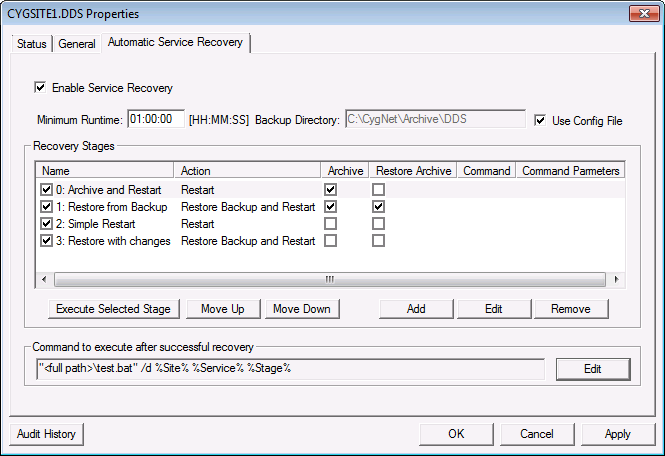
These following properties determine the overall structure of the Service Recovery feature. Each property on the Automatic Service Recovery page is described below.
| Property or Button | Description |
|---|---|
|
Enable Service Recovery |
Click to enable Automatic Service Recovery for the service. This must be enabled for service recovery for the service to be active. The entire Automatic Service Recovery plan for a service may be toggled by enabling/disabling the Enable Service Recovery option. This allows the feature to be toggled on or off as desired while still preserving all the settings. Likewise, an individual Recovery Stage may be toggled by enabling/disabling the stage’s Enabled option. See Recovery Stage Properties. |
|
Minimum Runtime |
The time that the service must run to consider the recovery successful. If the Minimum Runtime is not met, recovery will proceed to the next action in the list. If the service fails after the Minimum Runtime span, recovery will start again from the first action. Type the amount of time (HH:MM:SS) the service must run before the recovery stages will be re-initialized. |
|
Backup Directory |
Location of the service backup files if different from the location specified in the service configuration file. This option is applicable only when the Restore backup and restart or Restore backup with changes and restart actions are selected. The path can be relative or absolute. A relative path is from the RSM folder. |
|
Use Config File |
Click to use the backup directory indicated in the BACKUP_PATH service keyword in the service configuration file. |
|
Recovery Stages |
A list of the Recovery Stages configured for this service, including:
See Recovery Stage Properties for more information about configuring a Recovery Stage. |
|
Recovery Stage buttons |
Several buttons are available to configure, delete, reorder, and execute the recovery stages. Buttons include:
|
|
Command to execute after successful recovery |
Click Edit to configure a command to run after a successful recovery. See Adding a Recovery Success Command. For example, with the VHS you could specify a command to run the VHS Recovery utility as part of your VHS Quick Recovery process or VHS Check (if the service is not configured to automatically do this). Alternatively you could specify a command to perform custom logging, send an email, or set a point. |

|
|
|

